Sharpen: Restore Detail and Clarity
Sharpen blurry real estate photos - restore detail, fix soft edges, and remove noise. Perfect for phone photos, cropped shots, and downloaded images.


Sharpen: Restore Detail and Clarity
Soft Photos - A Common Problem in Real Estate Photography
Getting phone photos from a client? Downloading images from an old listing? Cropping a panorama to extract the best angle? In every case, you end up with a soft, blurry photo that's not good enough for a professional listing.
Basic sharpening filters just amplify noise. Sharpen in vizme works differently: it analyzes the image, recognizes structures (edges, textures, details), and reconstructs them with precision. The result is a crisp, detailed photo - sharp edges, clean textures, no artifacts.
How Sharpening Works
Sharpen works differently from basic filters:
- Restores detail - Textures of wood, fabric, brick, and other materials are reconstructed, even when soft or blurry in the original.
- Cleans up edges - Window frames, furniture lines, and walls become clean and sharp, without halos or artifacts.
- Preserves natural colors - Sharpening doesn't affect the image's colors or contrast.
- Reduces noise - Grain and compression artifacts are cleaned up, not amplified.
How to Use Sharpen
- Go to Quick Tools - In your dashboard, navigate to the Quick Tools section.
- Select your images - Choose one or more photos for batch sharpening.
- Click Sharpen - Each image is processed automatically.
- Download results - Sharpened images appear in your gallery, ready to download.
Processing takes a few seconds.
When Sharpening Is Essential
- Phone and older camera photos - Clients often send phone photos as source material for staging or editing. These are softer and noisier than professional shots. Sharpen brings them to professional quality.
- Cropped images - Cropping a panoramic room photo to extract the best wall angle? You lose sharpness. Sharpen restores crisp detail.
- Images downloaded from the web - Old listings, photos from property portals, screenshots from virtual tours - all degraded by compression. Sharpening restores clarity.
- Print preparation - Brochures, banners, large prints - all require crisp images. If your originals are soft, Sharpen gets them print-ready.
Tips for Best Results
- Start with the best available version - Higher source quality means better output. The tool works wonders, but not from nothing.
- Minimum 500px - Images below 500px may be too degraded to reconstruct details. Above 500px, results are very good.
- Combine with other tools - Sharpen first, then use Relight to improve lighting.
- One pass is enough - Running Sharpen twice doesn't improve results. A single pass is sufficient.
Sharpen + Other vizme Tools
Sharpen pairs well with other features:
- Use after Staging to enhance the clarity of generated images.
- Use before Exterior so the tool has more detail to work with.
Try Sharpen
Upload a soft or blurry photo and see how sharpening restores detail without losing the natural look. Sign up for free to get started.
Related Tool
Sharpen
More from the blog
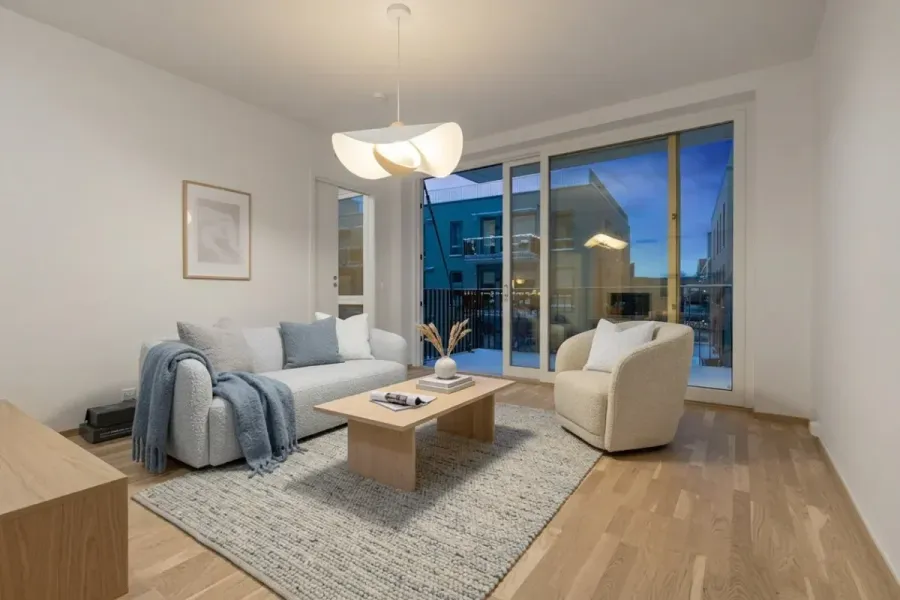
The Numbers Don't Lie: How Photos Sell Properties Faster
Hard data on how professional real estate photography and virtual staging impact sale prices, time on market, and buyer engagement. NAR 2025 statistics included.
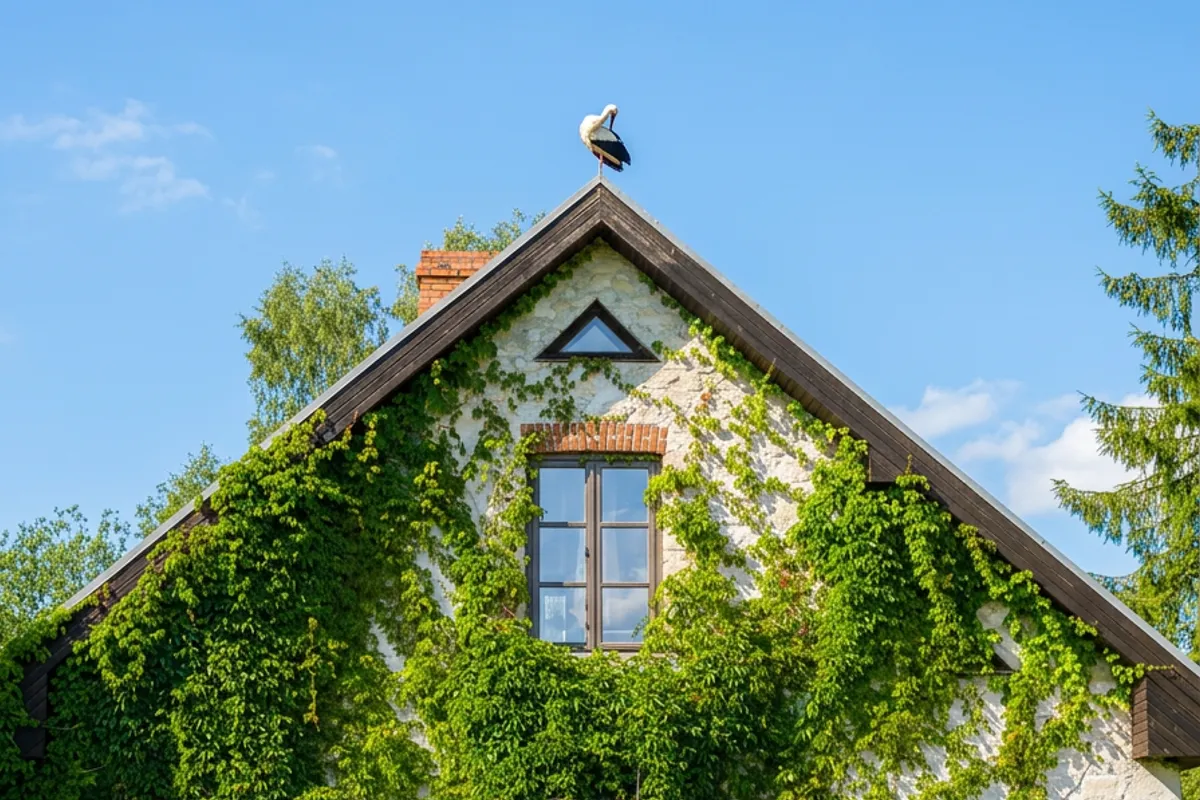
Exterior: Perfect Atmosphere for Property Photos
Transform property exterior photos with sky replacement, seasonal changes, and atmosphere presets - from grey overcast to golden hour in seconds.
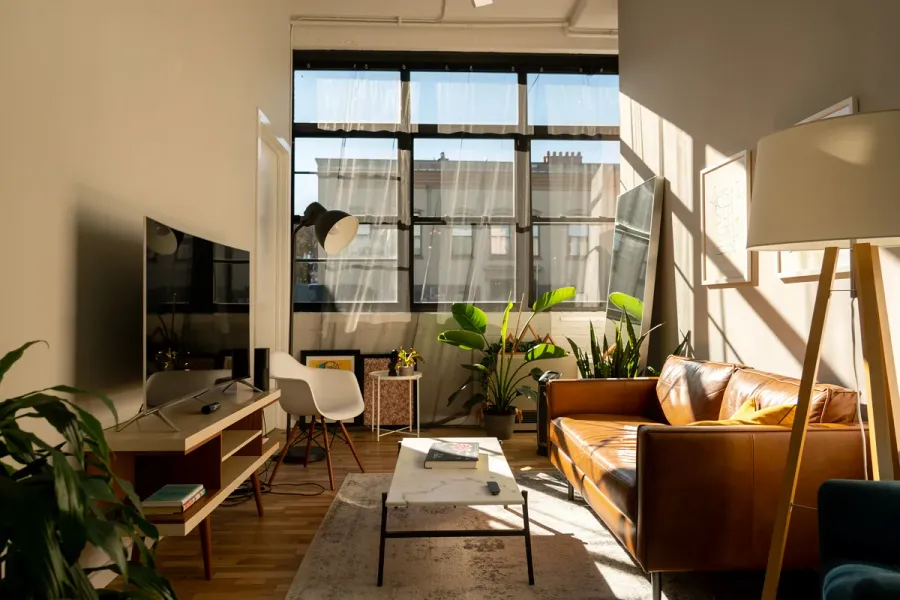
Relight: Better Lighting in Seconds
Learn how to use the relighting tool to enhance photos with perfect lighting - from brightening dark rooms to creating cozy evening ambiance.